The State of Agentic Interaction
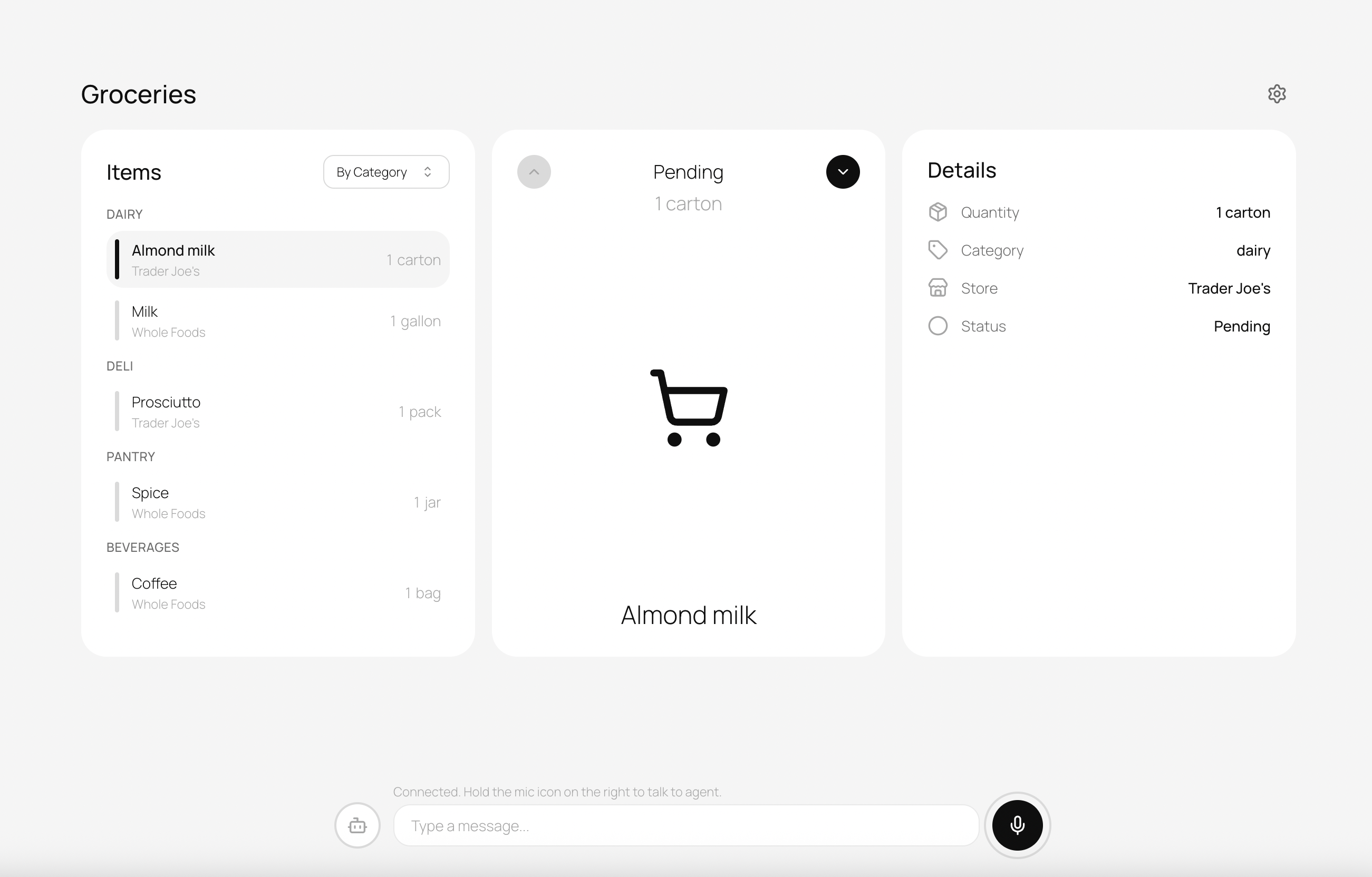
We've moved from command-line interfaces to graphical UIs, from mouse-driven navigation to touch, and now we're adding voice as a first-class modality. Voice joins the existing interfaces rather than replacing them, and folding it in well takes some careful design.
The Right-Hand Panel Pattern
Look at the most successful AI integrations today, and you'll notice a common pattern: the AI lives in a collapsible side panel, ready when you need it, invisible when you don't.
Cursor and VSCode Copilot pioneered this for code editors [1]. The AI suggestions appear inline (ghost text, code completions), while deeper interactions happen in a chat panel that slides in from the right. You're never forced to context-switch to a separate application; the AI augments your workflow rather than interrupting it.
Claude's browser extension takes a similar approach [2]. A sidebar overlay that can access page context, answer questions, and help with writing, all without leaving the page you're working on.
OpenAI's Atlas represents the ambient AI assistant vision [3]: an AI browser with ChatGPT integrated, where users can access context across pages and respond to queries naturally.
The pattern works because it respects the user's primary focus: the work stays in the main window, and the AI helps from the side.
The Evolution of Multi-Modal UI
But text-based chat panels have limitations. They work well for conversations, but they struggle with structured data output.
MCP (Model Context Protocol) Elicitation is solving one piece of this puzzle [4], enabling agents to gather structured information through dynamic forms rather than conversational back-and-forth. Servers can now ask users for input mid-session by sending an elicitation request with a JSON schema, transforming MCP from a simple request-response protocol into an intelligent, conversational interface.
OpenAI's ChatKit and similar approaches address the output side [5], rendering tool results as visual cards rather than walls of text. ChatKit offers 21 interactive widgets including forms, cards, buttons, and lists. A weather forecast is better as a card with temperature, humidity, and a 5-day outlook than as a paragraph of prose.
This is the direction we're heading: agents that can accept input through whatever modality is most efficient (voice, text, forms) and present output through whatever format communicates best (cards, charts, prose).
Voice Modality Fragmentation
Voice itself isn't monolithic. The contexts in which voice makes sense vary dramatically:
Phone (1-800, SIP integration) remains the most universal interface for reaching customers. OpenAI's Realtime SIP integration [6] enables AI agents to answer phone calls directly—no IVR menus, no hold music, just immediate assistance. This is transformative for contact centers, but it's a specific use case with specific constraints (audio-only, telephony latency, regulatory requirements).
Desktop applications present different opportunities. Users have screens, keyboards, and precise pointer control. Voice here is additive—a faster input method for certain tasks, not the only interface.
Chat interfaces are text-first by design, but voice input (dictation) can dramatically speed up longer messages. The output might still be text, but the input shifts.
Transcription-focused apps like Whispr and Willow take yet another approach: speech-to-text as the primary value, with minimal AI processing beyond accurate transcription.
The Social Challenge of Speaking in Public
Here's a reality that technologists often overlook: speaking aloud isn't always socially appropriate.
Imagine you're in an open-plan office and want to add an item to your todo list. With text, you type "tampons" and nobody knows. With always-on voice? You're announcing your shopping needs to everyone within earshot.
Or you're on a train, reviewing your calendar. "Remind me about the meeting with HR about my performance improvement plan" isn't something you want fellow commuters to hear.
Voice interfaces have to treat social context as a privacy concern in its own right, alongside data security. That shapes the basic design decision of when and how the microphone is allowed to listen.